Trying Kombai: A Figma to Code AI Tool
AI was used for typo detection in this article
I’m Oikon.
This time, I’d like to introduce Kombai, a Figma to Code frontend AI tool.
Kombai once ranked #1 on Product Hunt and was officially released on July 31, 2025.
My personal overall assessment is as follows:
- Easy to use as a VSCode or Cursor plugin
- Being able to verify UI in Sandbox is excellent
- The high UI compile success rate is impressive
- Figma to Code isn’t Pixel Perfect, but works well as a starting point
AI coding tools like Claude Code seem weak at frontend and UI coding, so I find frontend-specialized AI personally interesting.
About Kombai
Kombai is an AI agent specialized in frontend development, gaining attention as an AI-powered development support tool. In 2023, it was selected as Product Hunt’s most upvoted tool (link). Kombai aims to automate frontend development with AI.
At Kombai are building a developer tool for web app developers which takes away their mundane automatable tasks like writing and maintaining CSS and other boilerplate JS code. Our vision is to automate all the mundane tasks a frontend dev team has to do today, accounting for 60-70% of their work.
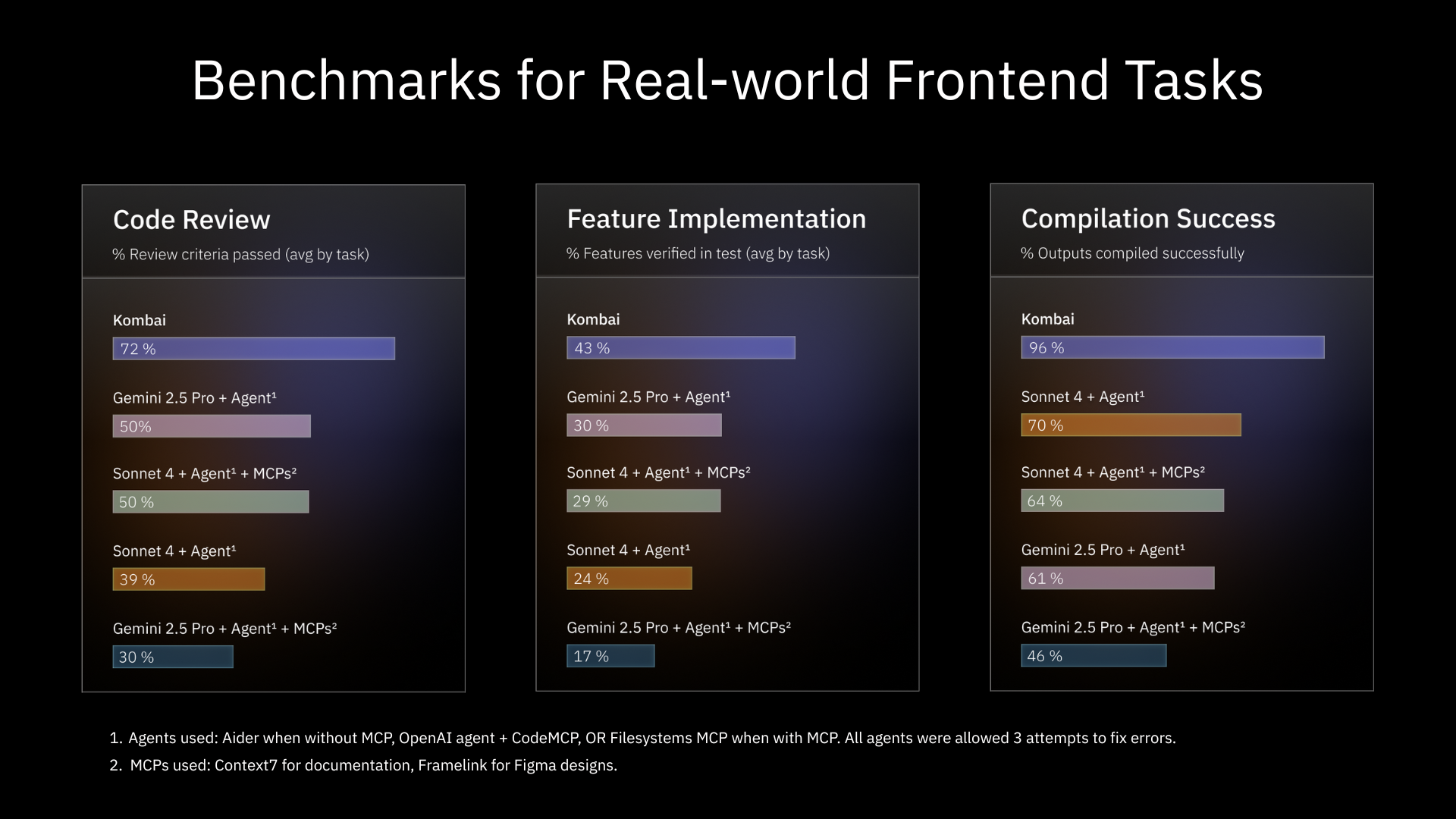
On the product page, benchmarks for frontend development are published. They report that Kombai performs better than commonly used AI coding agents in Code Review, Feature implementation, and Compile success.
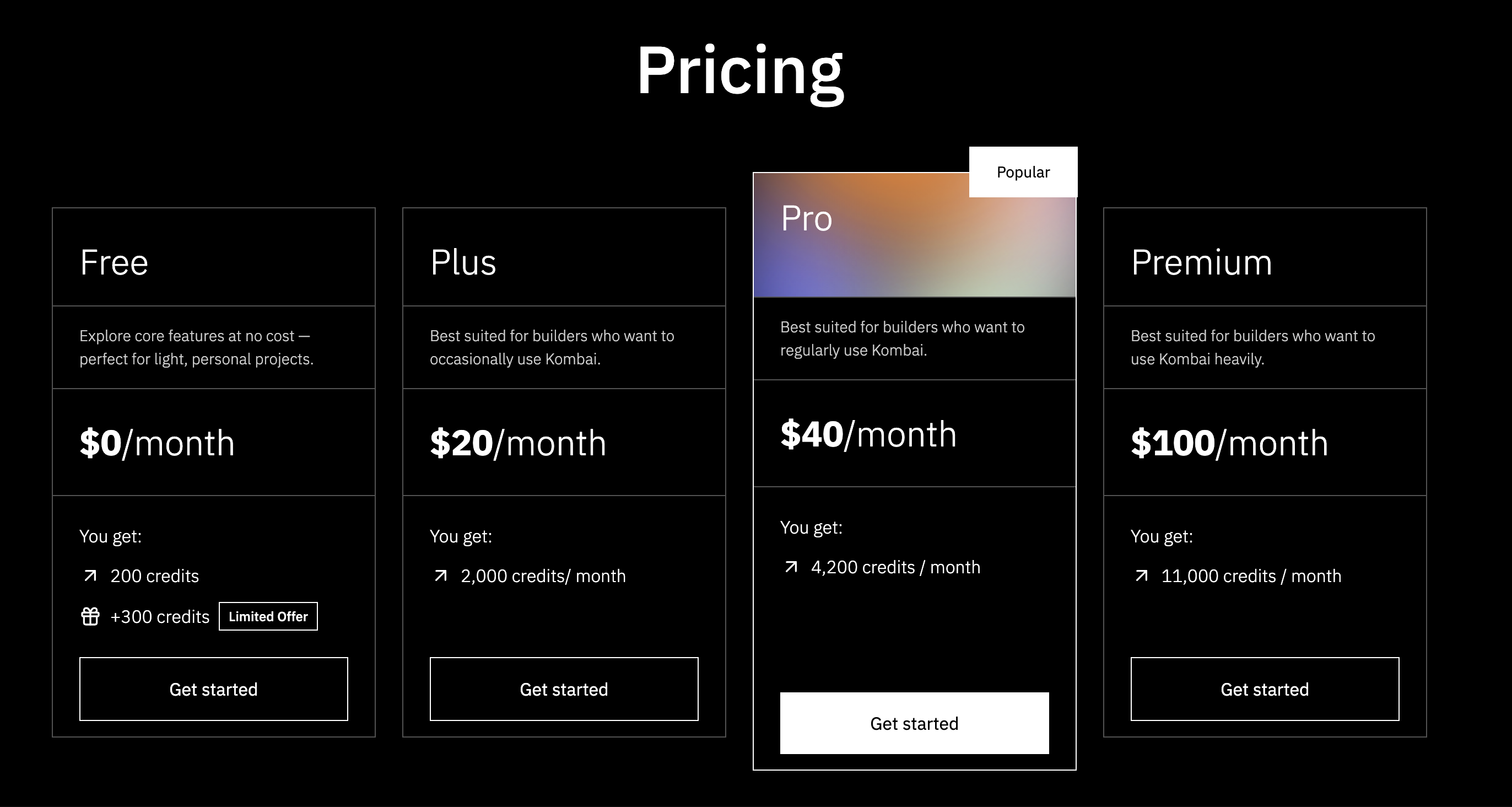
Pricing starts from a Free plan with credits. As I’ll mention later, creating one UI from a Figma design costs roughly 20-40 credits.
Using Kombai
Installation
Kombai is currently available on the following marketplaces:
- VSCode
- Cursor
- Windsurf
This time, I’ll explain the process of installing Kombai in Cursor.
Enter “Kombai” in the plugin search, and Kombai with a dog icon will appear.
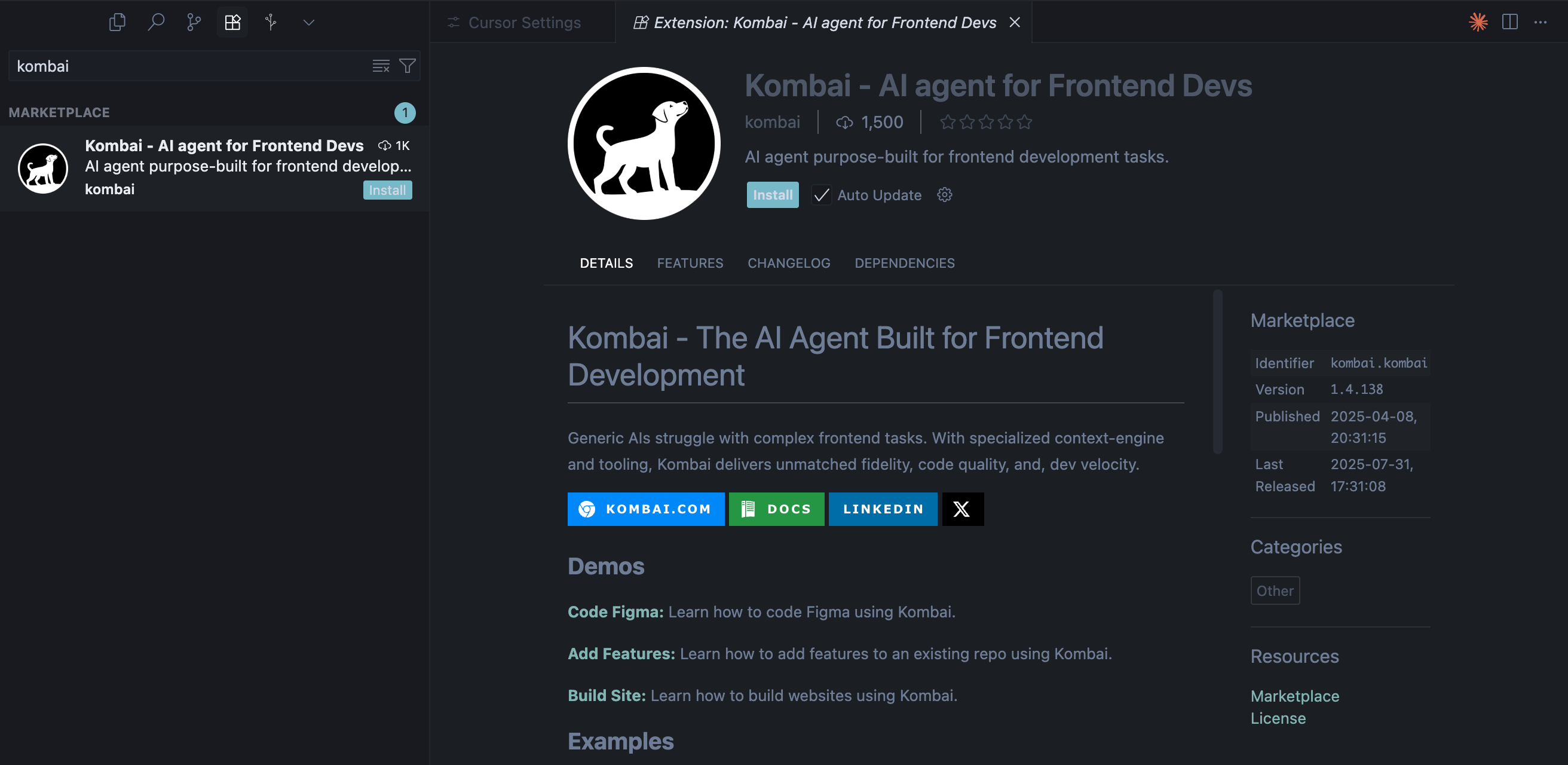
After installation, a Sign in screen appears in the editor’s View. Select Sign up if you haven’t created an account.

After successful sign-in, you’ll see this screen: 
Creating UI with Natural Language
First, I tried instructing UI creation with natural language. I entered the following prompt:
I want to create a Pokédex. Make it so all 151 first-generation Pokémon are viewable.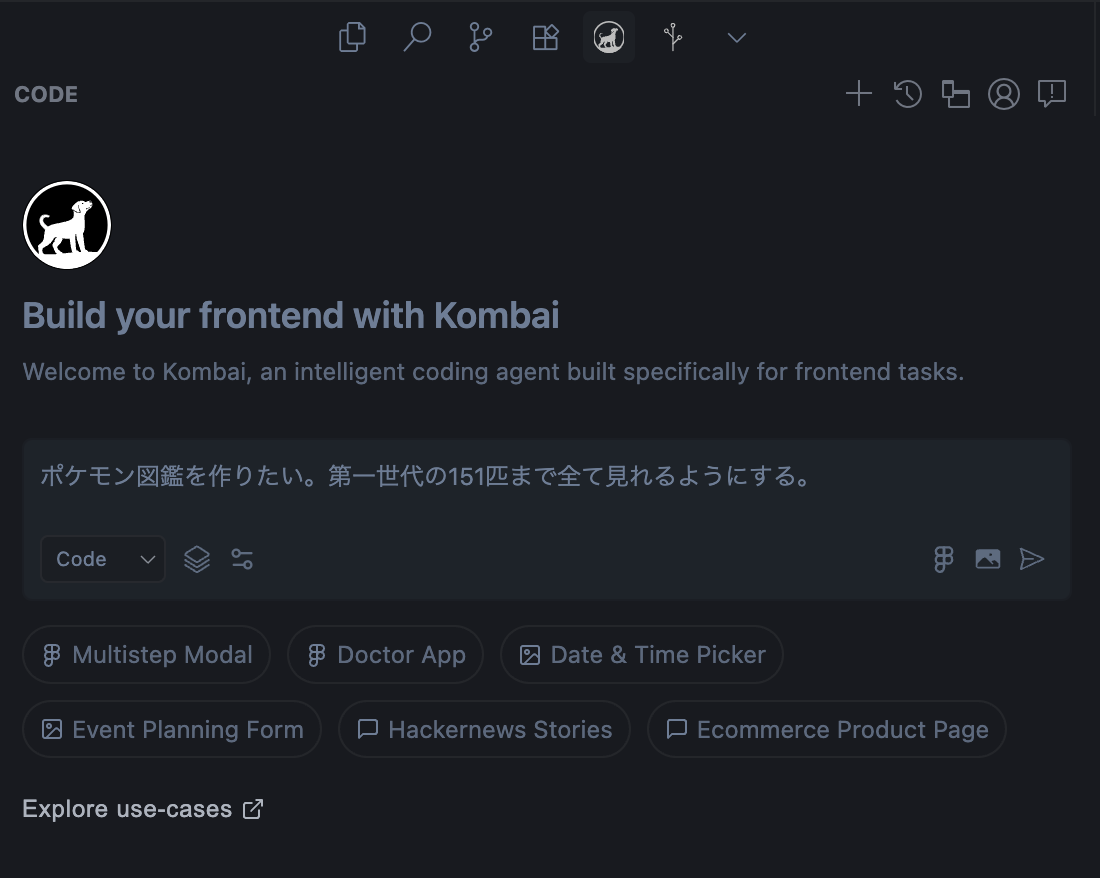
When you run the chat, it lists what tech stack will be used to design the frontend.
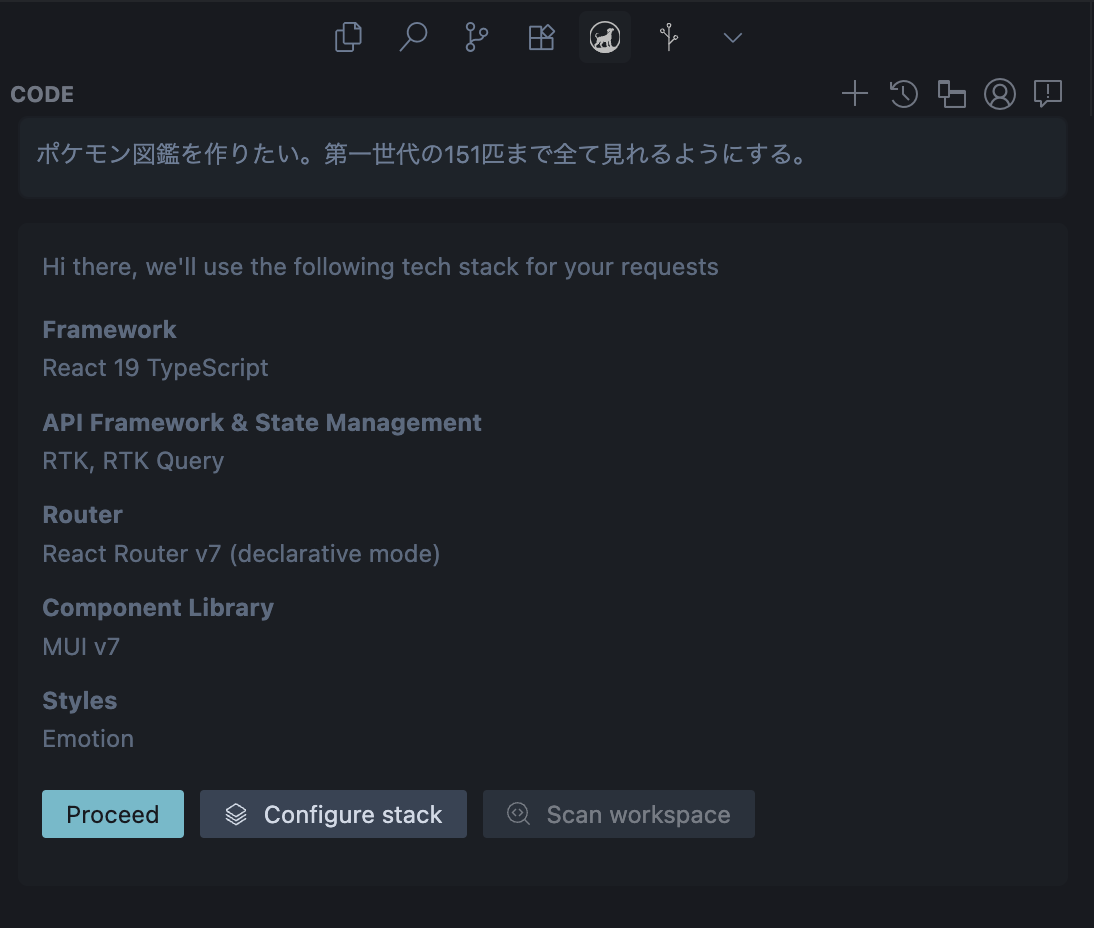
- Framework: React 19 TypeScript
- API Framework: RTK, RTK Query
- Router: React Router v7 (declarative mode)
- Component Library: MUI v7
- Styling: Emotion
The tech stack options provided feel slightly different from what’s preferred in Japan. You can change the tech stack from Configure stack as needed.
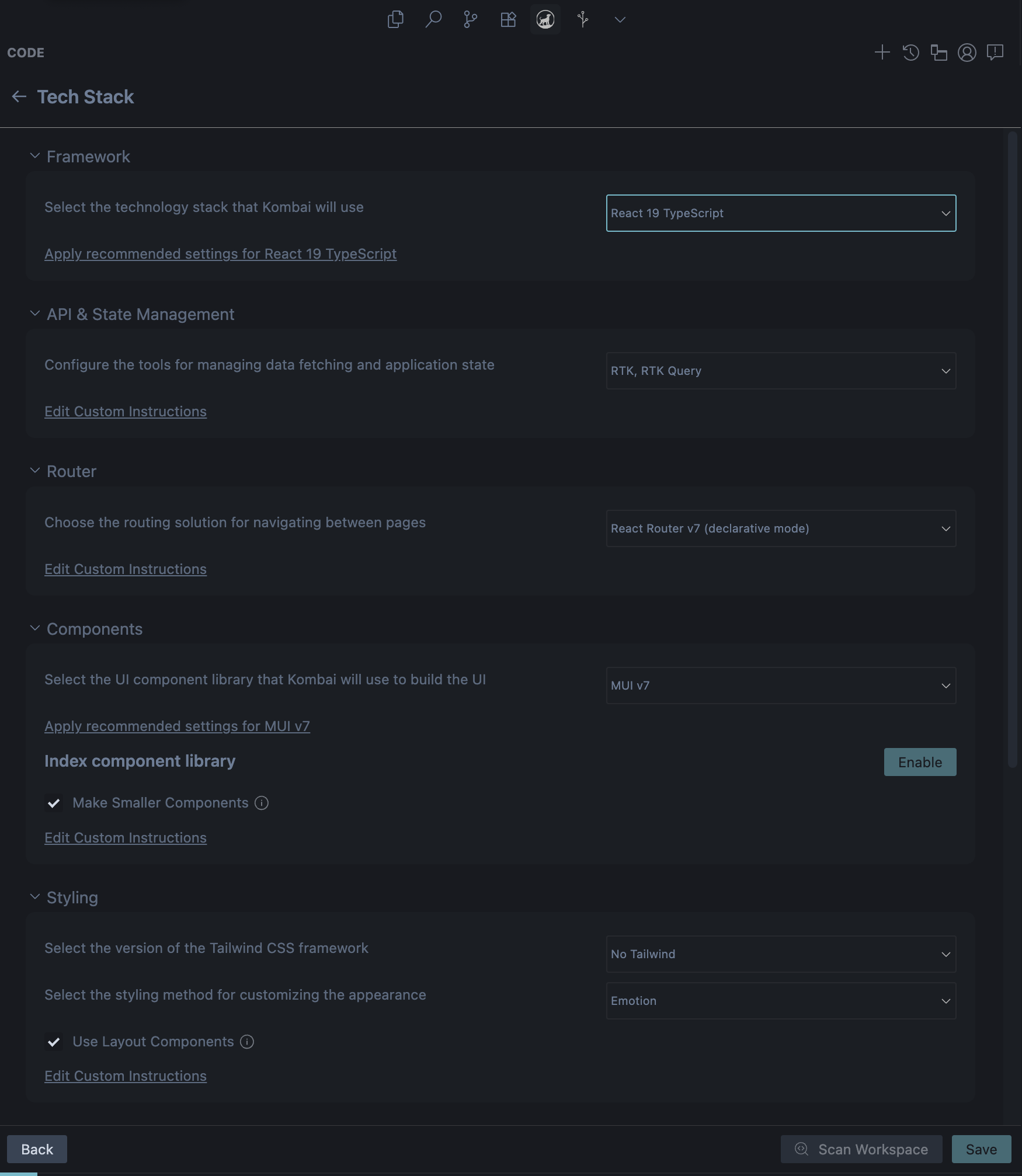
Available configuration items include:
- Framework
- API & State Management
- Router
- Components
- Styling
- Icons
- Global Instructions
- Advanced Configurations
Detailed tech stack information is in the following documentation:
Once you’ve decided on the tech stack, it moves to the Planning Phase. The Planning Phase lists what Views and components will be created. You can edit or comment if there are any issues.
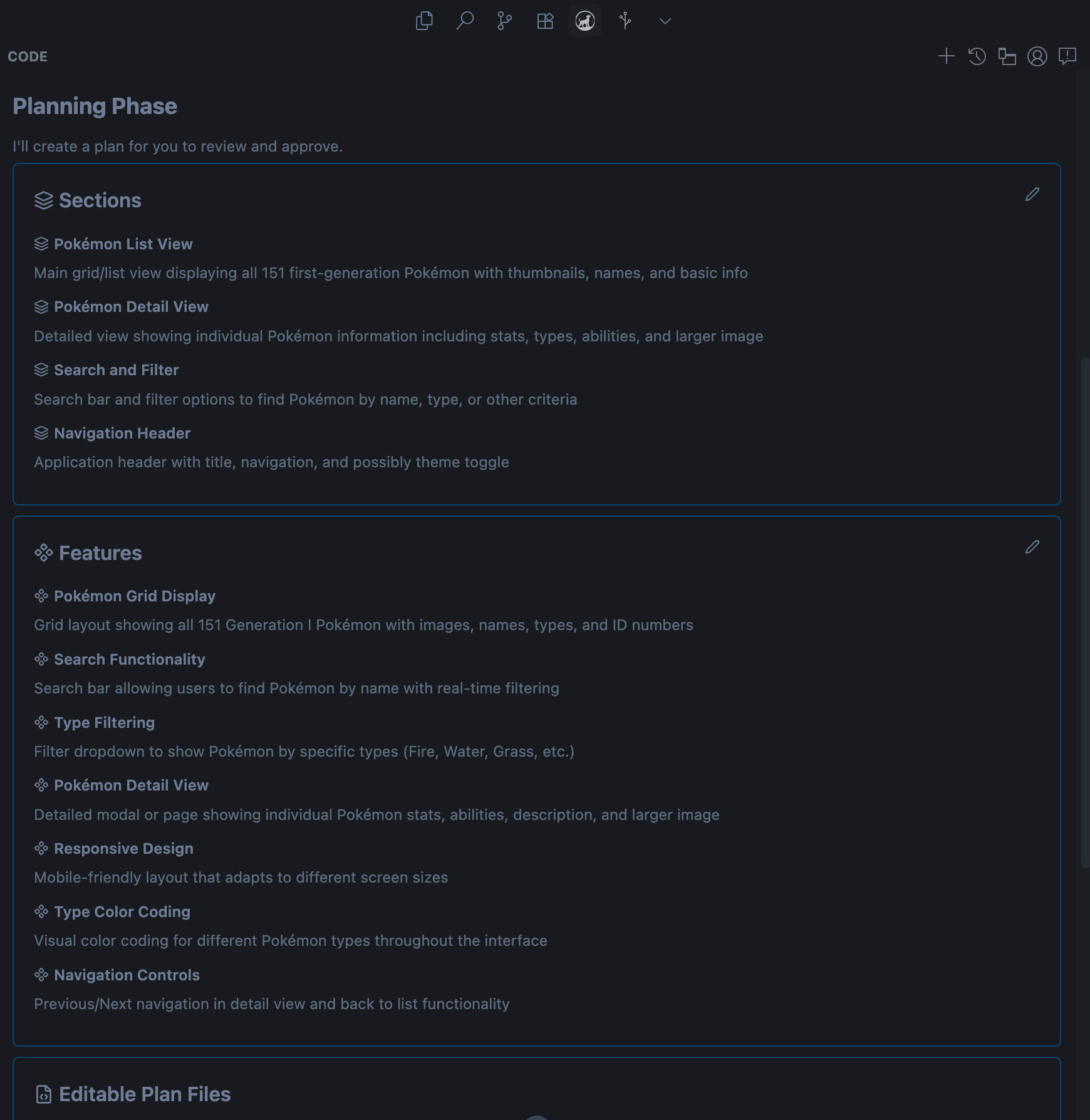
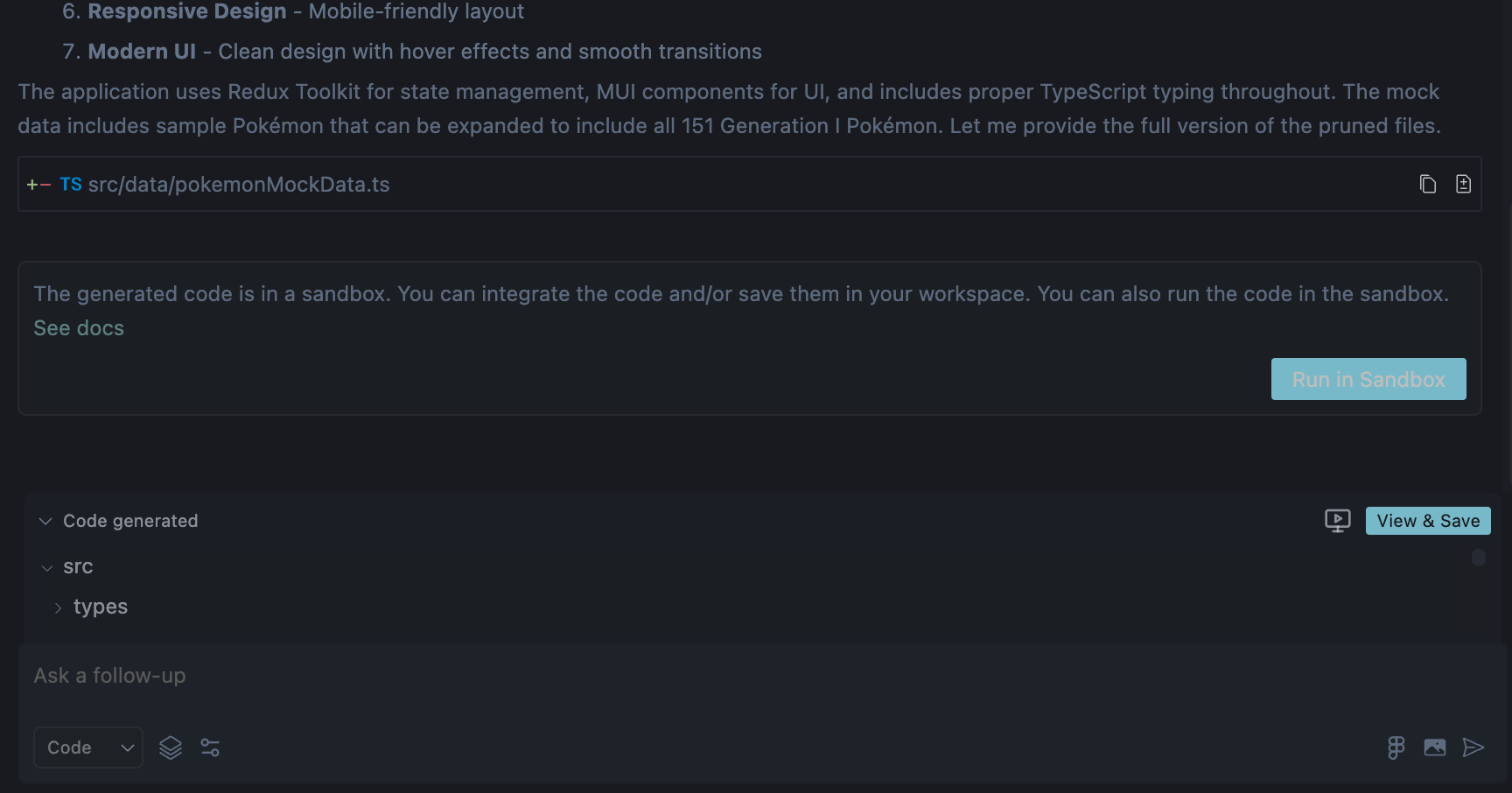
If there are no issues with the Planning Phase content, execute it. When execution finishes, a Run in Sandbox button appears as shown in the image.
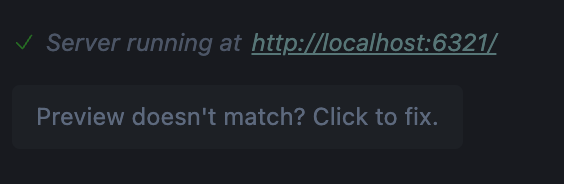
Running Run in Sandbox lets you view and interact with the created frontend on localhost. The ability to verify AI-generated frontend in a Sandbox is Kombai’s strength.
Here’s the Pokédex created this time. It has an MUI-style UI.
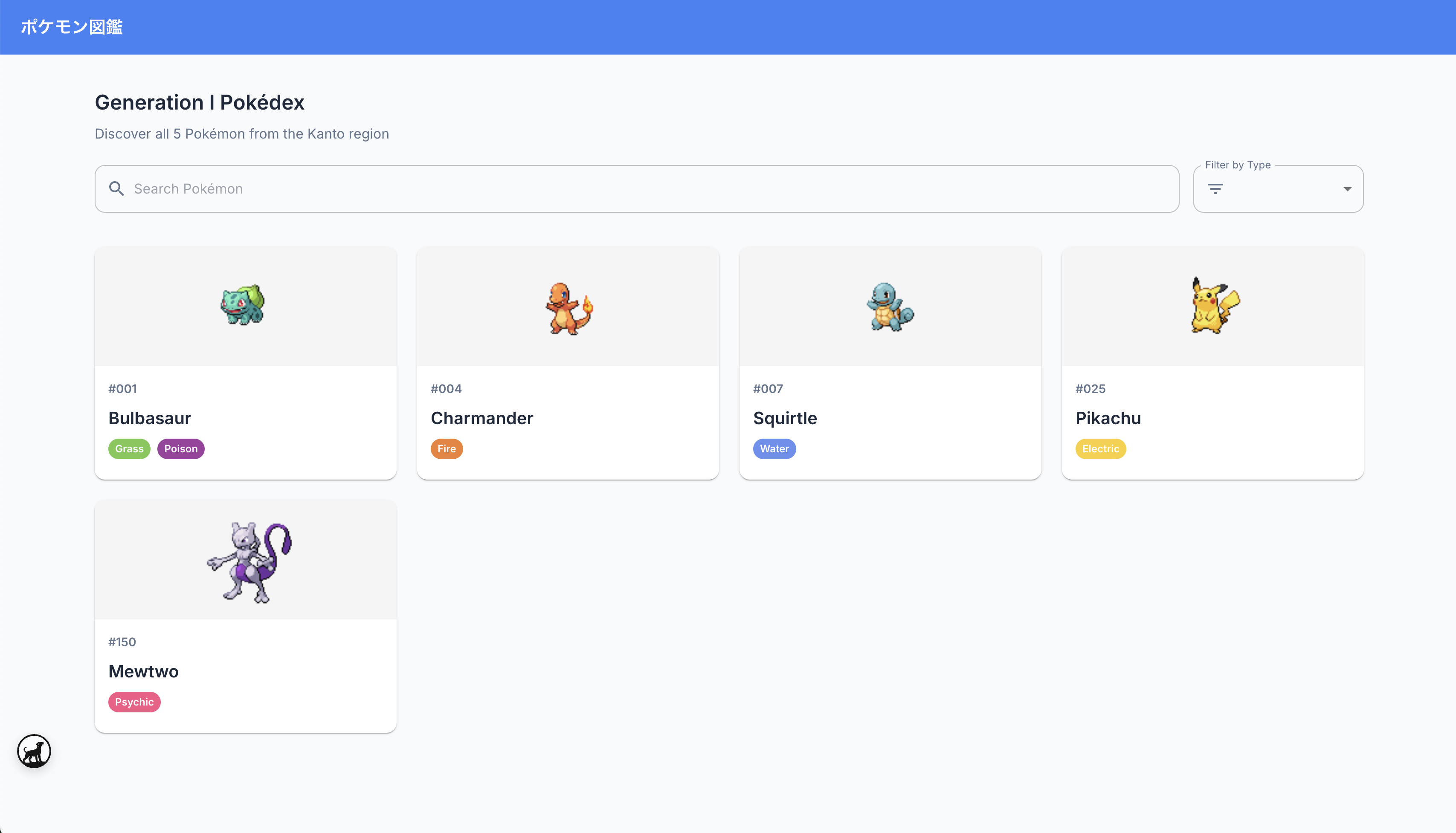
It prepared 5 mock data entries.
I tried adding the following prompt as additional instruction:
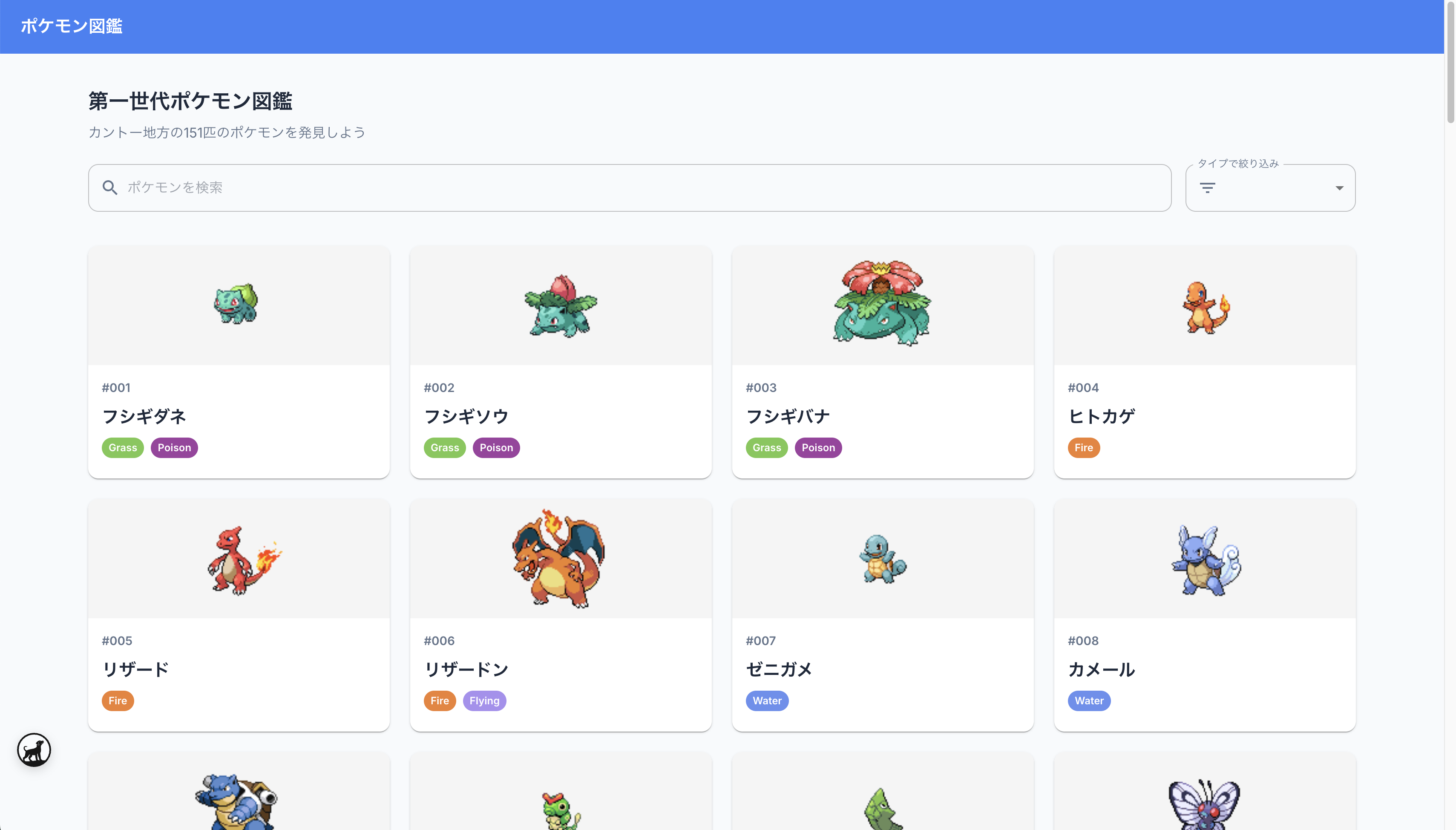
Make it 151 Pokémon species. Also, make all UI text Japanese.The Pokédex generated from the additional instruction is shown below. It properly added Japanese support and 151 species of mock data.
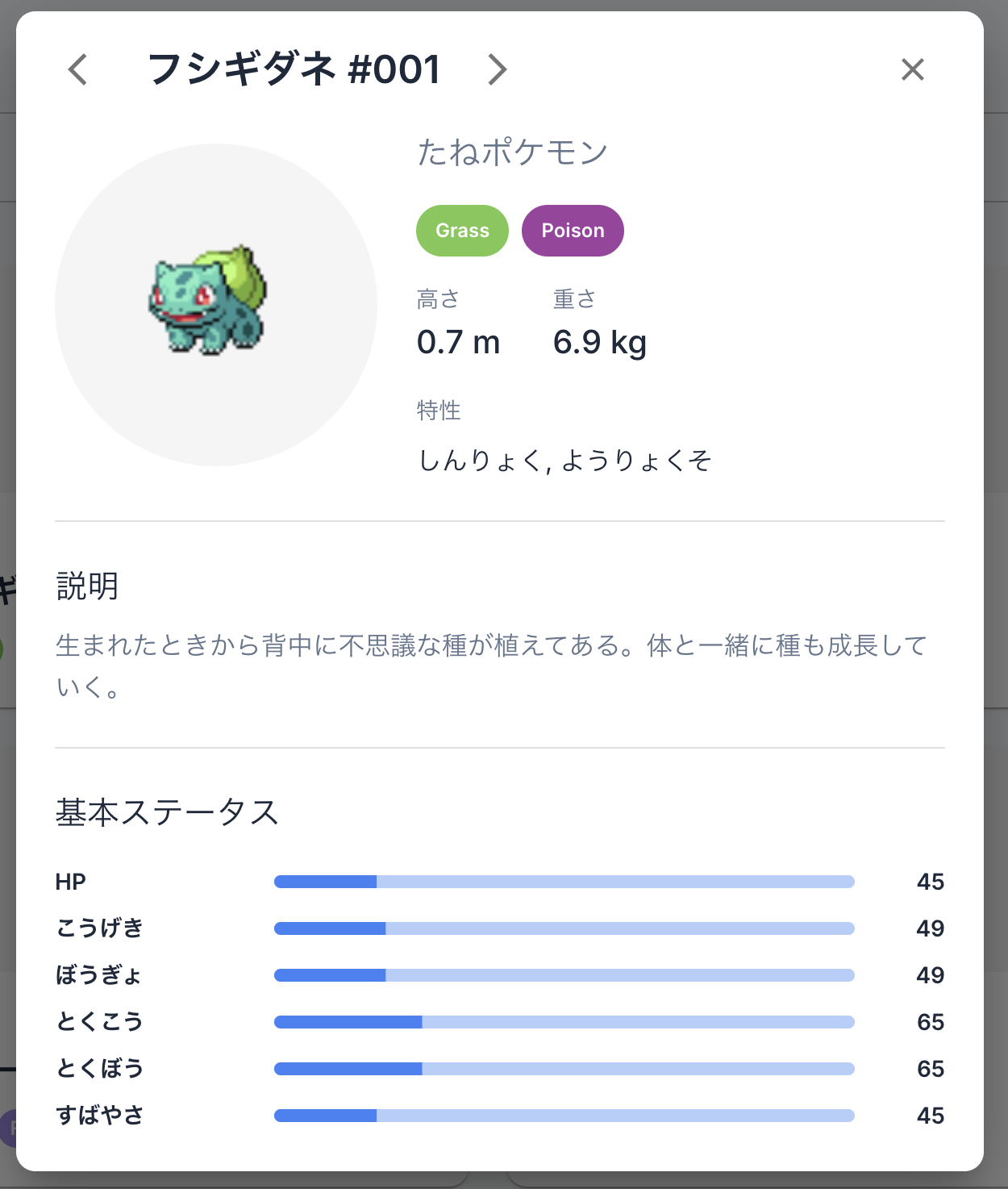
UI interactions were also possible in the Sandbox. For example, selecting a Pokémon showed individual Pokémon details.
Beyond this, I could also verify that search and filters worked correctly in the Sandbox.
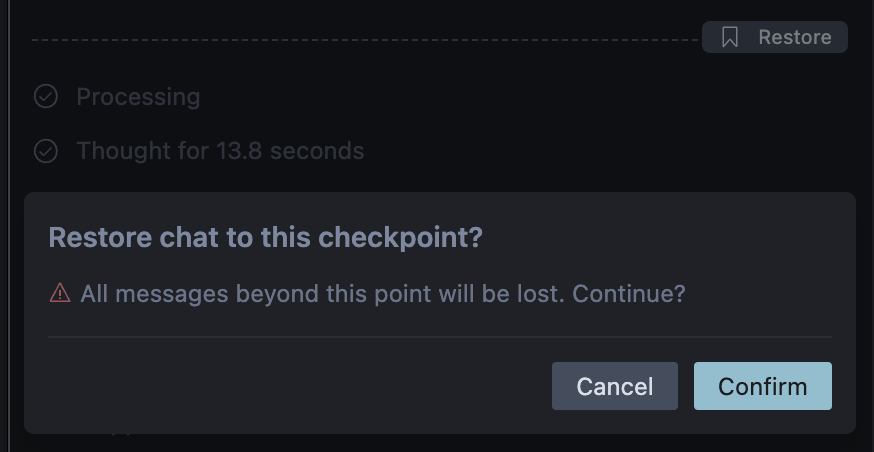
If there are no issues with the Sandbox changes, you can save the changes. Conversely, Kombai doesn’t apply changes to your local workspace until you accept them. Development in the Sandbox can also be restored to checkpoints in the chat.
Here’s the frontend output for this Pokédex:
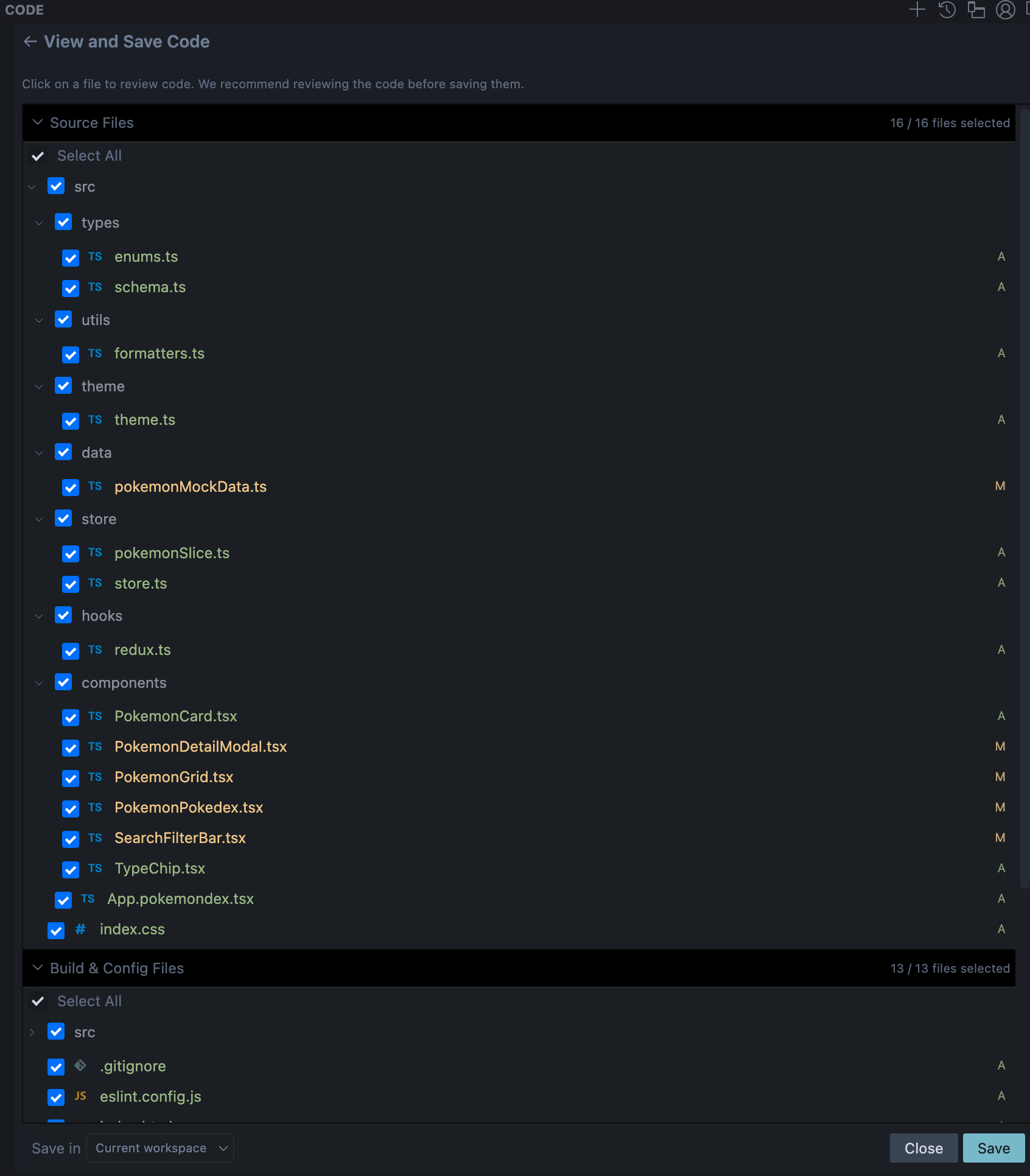
Kombai not only created components but also organized frontend folder structure.
Creating UI from Figma
Kombai also provides “Figma to UI” functionality to import Figma and convert it to UI. You can add it from Add Figma link at the bottom right of the chat.
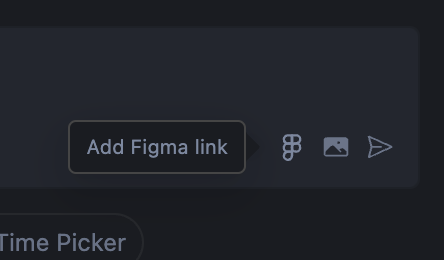
A dialog for Figma URL input appears. The dialog also explains how to get the Figma URL.
Right-click frame > "Copy/Paste as" > "Copy link to selection"First-time use requires authentication to connect Figma and Kombai.

When the Figma URL is correctly loaded, the Figma design appears in the prompt as shown in the image. Since this design is treated as an @ resource, you can also load multiple Figma designs.
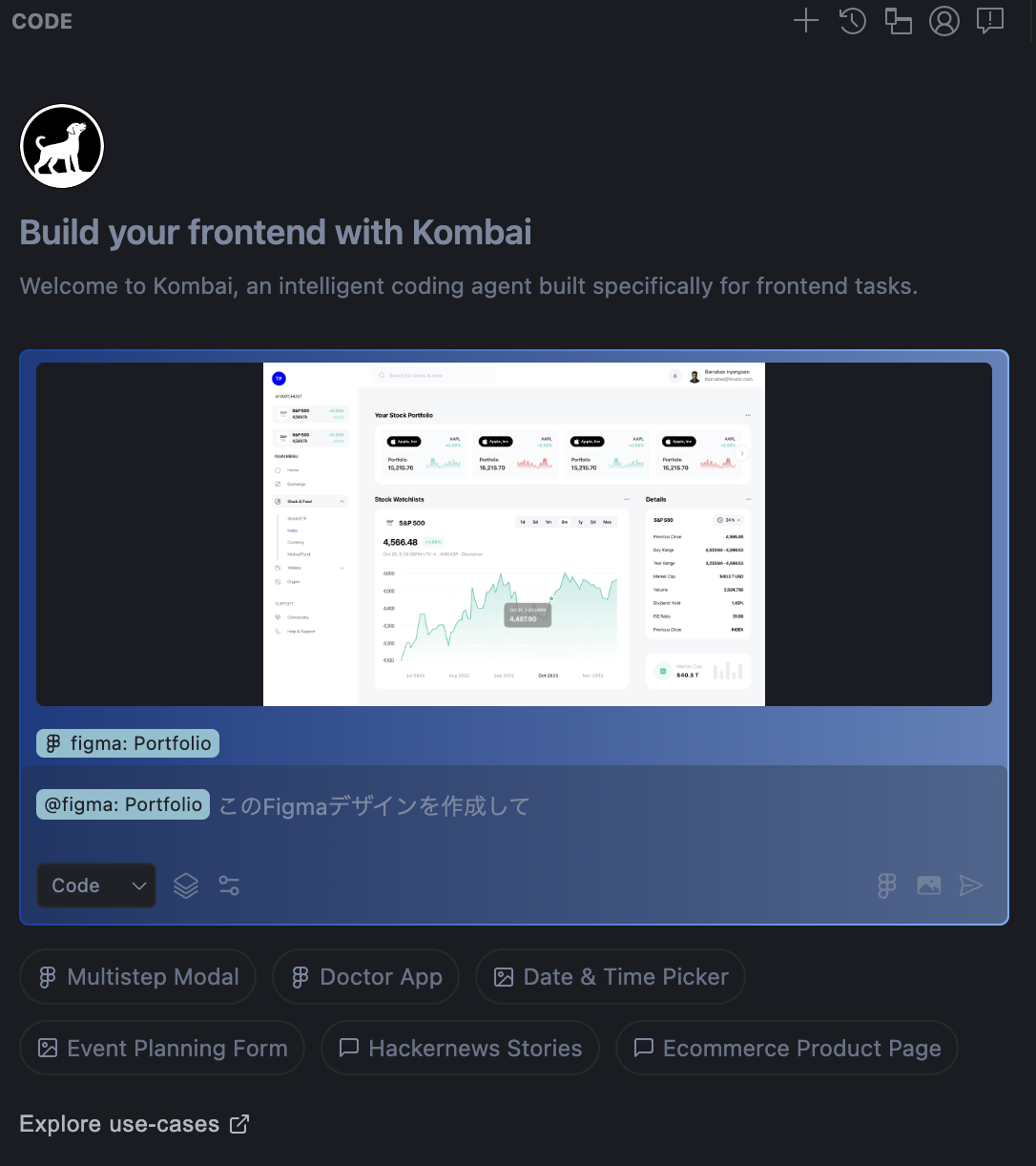
I’ll show some examples of UI created from Figma designs. For reference, all are One-shot Prompts.
Here are 3 examples, so compare the Figma designs with Kombai’s output. By the way, each consumed about 20-40 credits.
Example 1
Figma Design (link):

Kombai Output:

Example 2
Figma Design (link):
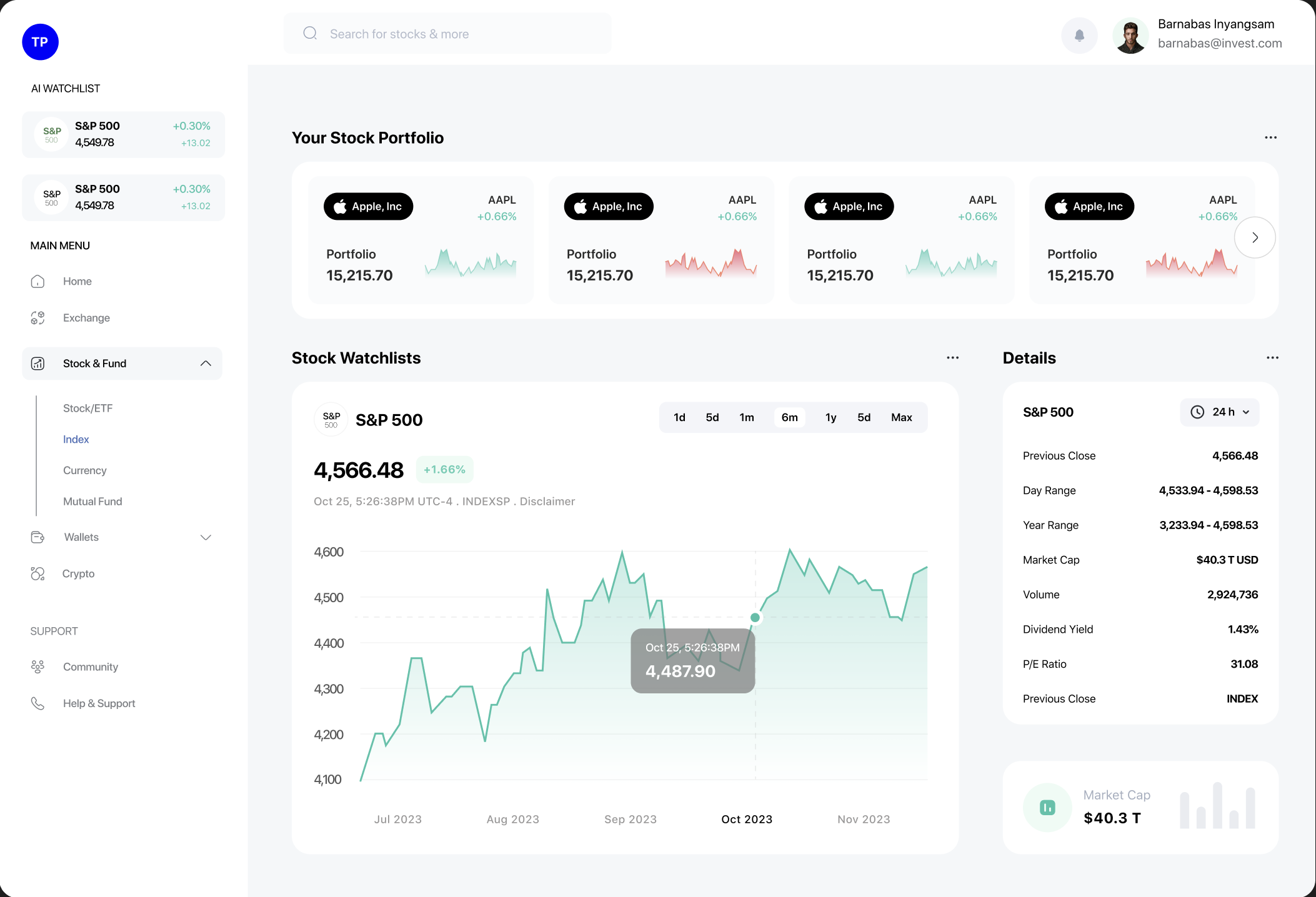
Kombai Output:
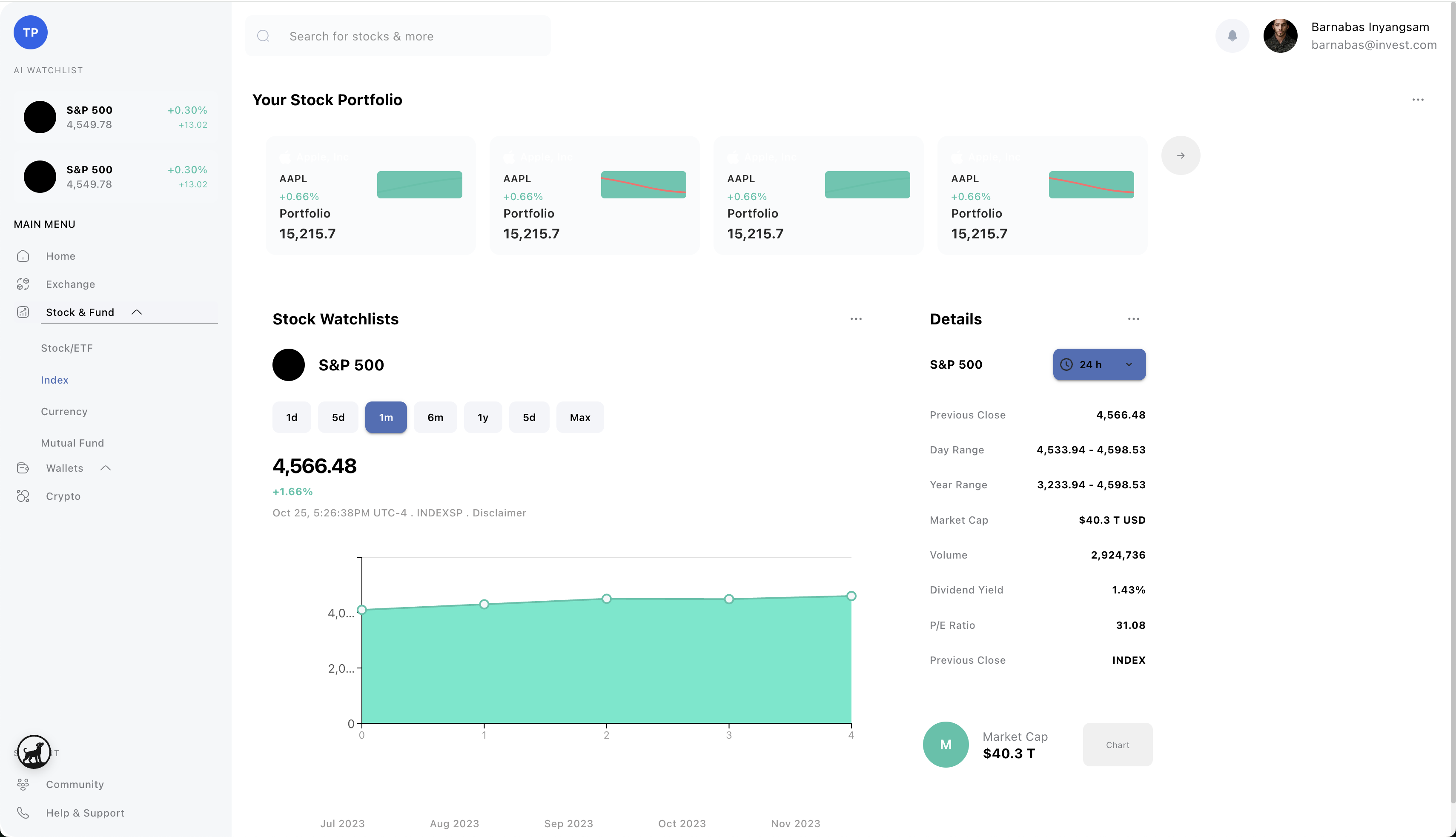
Example 3
Figma Design (link)
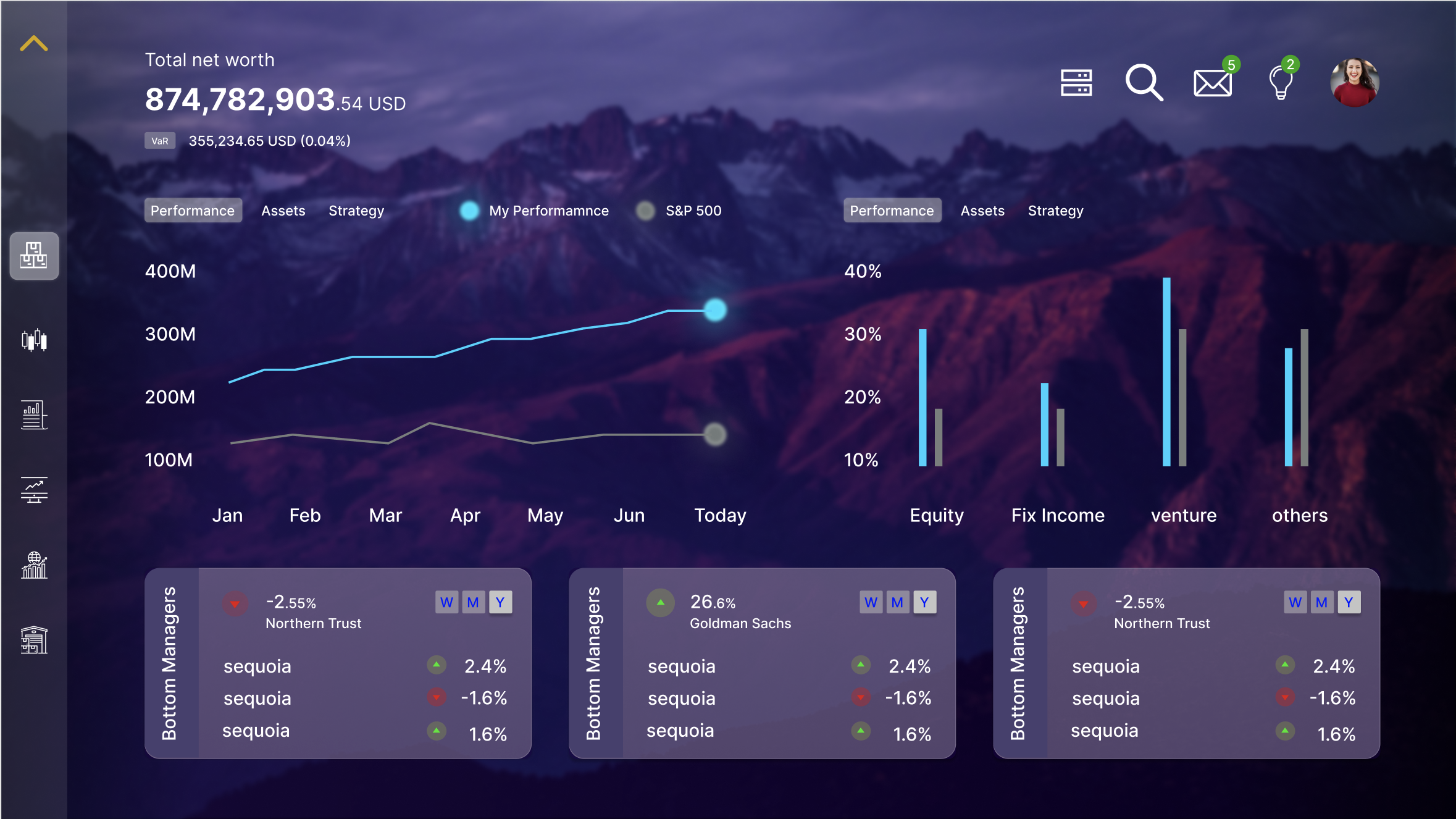
Kombai Output:
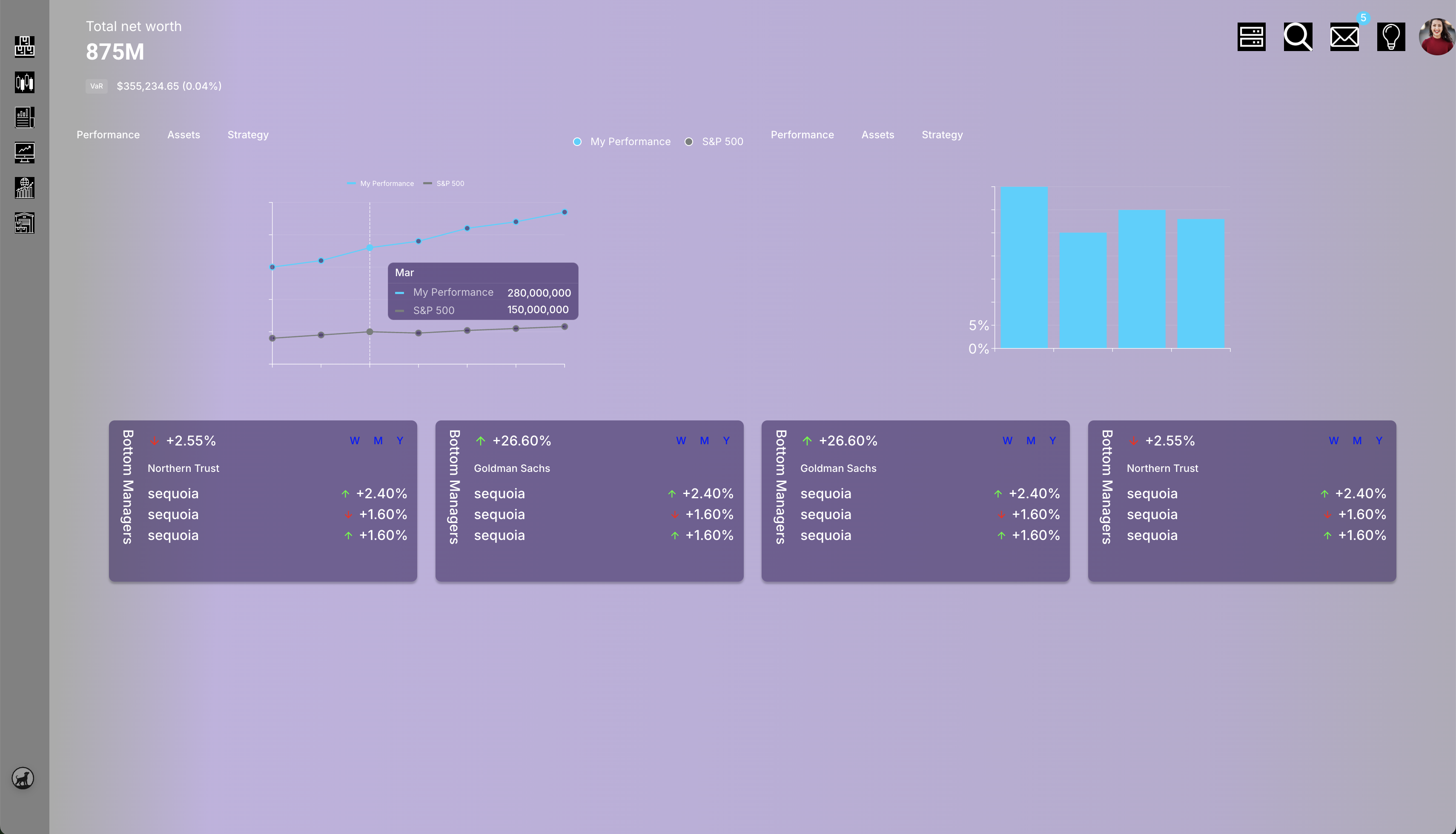
My impressions:
- Not Pixel Perfect
- Sufficient as an initial mock
- Seems to struggle a bit with transparency
- Can be improved with Few-shot Prompts
Kombai’s official site also showcases design examples, which should be helpful for seeing what kind of UI can be generated.
Summary
This time I introduced Kombai, a Figma to Code AI tool.
- Easy to use as a VSCode or Cursor plugin
- Being able to verify UI in Sandbox is excellent
- The high UI compile success rate is impressive
- Figma to Code isn’t Pixel Perfect, but works well as a starting point
This time it was a frontend AI tool, but I think domain-specialized coding tools will continue to emerge.
I hope this is helpful for those interested.
(Side note)
Animal icons keep increasing in my taskbar…

Follow Me on 𝕏!
I also share information on 𝕏, so I’d appreciate it if you followed me!
