Figma to Code Comparison Using Claude, Codex, and Kombai
I’m Oikon.
Recently, I had the opportunity to present on the theme of how faithfully AI tools can implement designs.
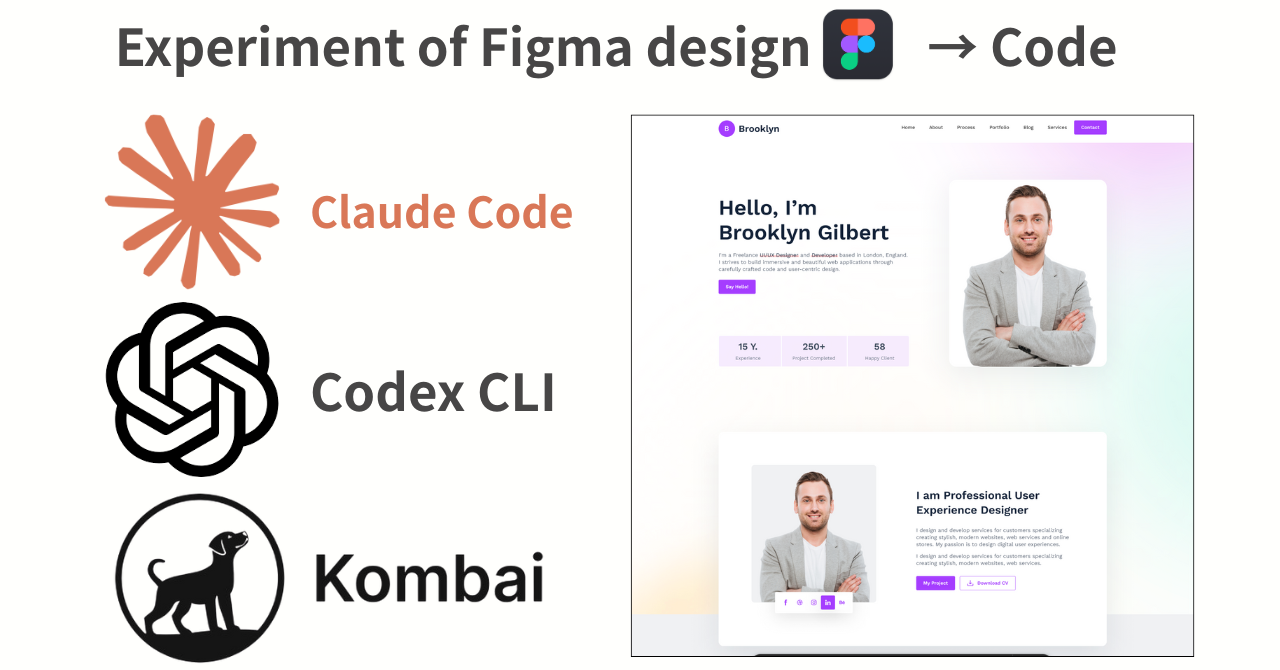
For that presentation, I conducted an experiment comparing code generation from Figma using these 3 tools:
- Claude Code + Figma MCP
- Codex CLI + Figma MCP
- Kombai
In this article, I’d like to compare each method in detail.
Current State and Challenges of UI/UX Design Implementation
AI tools have been getting better at design lately, but they still don’t seem to implement as well as backend work. In frontend development, I personally feel the following challenges in converting designs to code:
- Reproduction accuracy: Difficult to accurately code design intent. Tends to look “AI-generated”
- Implementation: Responsive support is often missed without proper instructions
- Knowledge: Doesn’t have latest information on libraries and frameworks
- Maintainability: Consistent component design is difficult
UI/UX still doesn’t reach satisfactory quality without designer and engineer expertise.
I also often hear opinions that it’s not pixel-perfect (though pixel-perfect may not always be necessary).
Currently, the method that can relatively faithfully reproduce designs in code is designing in Figma and generating code from that. This is because AI can more easily recognize component structures in Figma that it can’t fully grasp from images.
From the Figma to Code perspective, I’ll introduce two main approaches: using Figma MCP and using frontend-specialized AI tools.
What is Figma MCP?
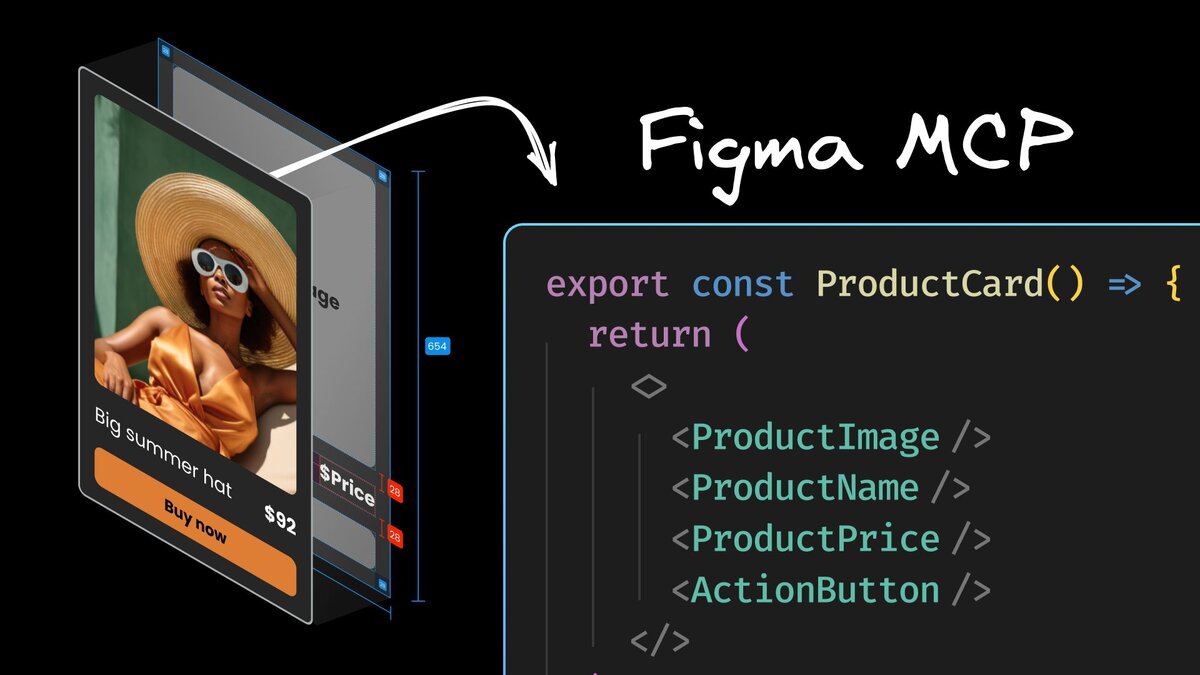
Figma MCP is a tool that allows AI to directly read Figma design data and assist with code generation. With Figma Desktop, you can easily connect an MCP server to AI agents locally. Since AI agents can directly read and understand Figma design data, they can often implement designs better than when given general images.
How to Use with Claude Code / Codex CLI
By connecting Figma MCP to Claude Code or Codex CLI, you can generate code from Figma designs. You can launch a local MCP server by checking Preferences > Enable desktop MCP server in Figma Desktop settings.
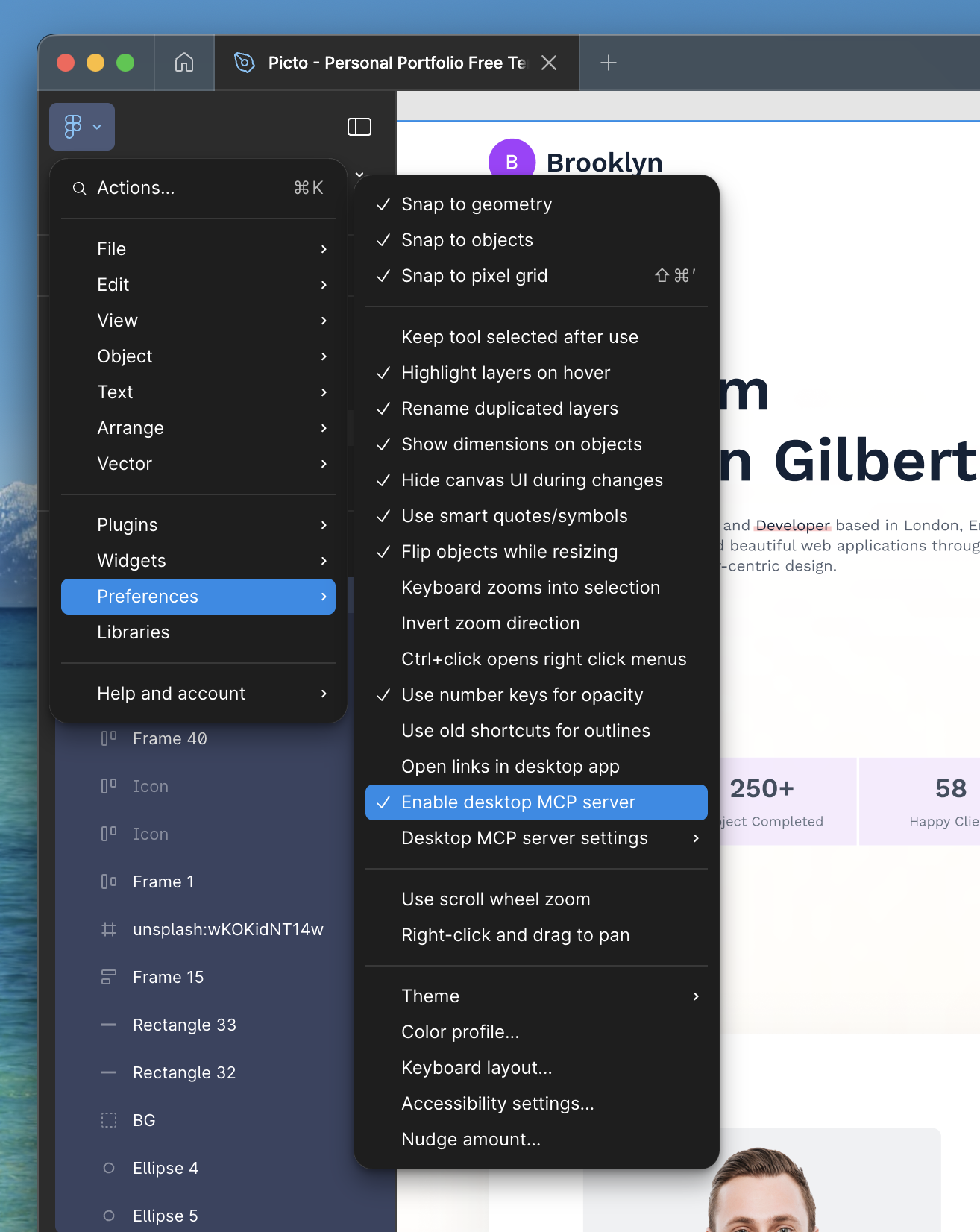
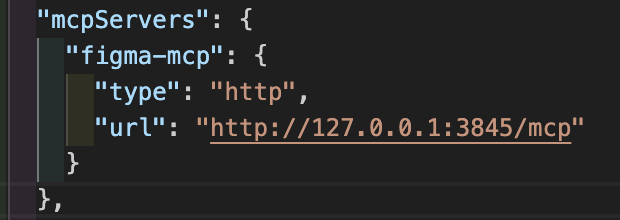
After Figma Desktop settings are done, write in your configuration file as follows. I’ll show configurations for both Claude Code and Codex CLI.
Claude Code configuration example (~/.claude.json):
Codex CLI configuration example (~/.codex/config.toml):

I personally found this article helpful↓
About Frontend-Specialized AI Tools
Several frontend-specialized AI agents exist:
Among these, I personally use Kombai, so I’ll compare using Kombai this time.
About Kombai
Kombai is a frontend-specialized AI Agent tool developed by an Indian startup. It once ranked #1 on Product Hunt and was officially released in August 2025.
- Analyzes entire projects
- Configurable tech stack (frameworks, libraries)
- Runs in a virtual environment, doesn’t modify local files until Accept
- Available as extension for VSCode/Cursor/Windsurf/Trae
I’ve written a detailed article about Kombai before, so check it out if you’re interested:

Experiment: Converting Figma Designs to Code with 3 Tools
We conducted comparison experiments using the same Figma design with the following 3 tools.
Verification Method
- Claude Code + Figma MCP
- Codex CLI + Figma MCP
- Kombai
Common prompt:
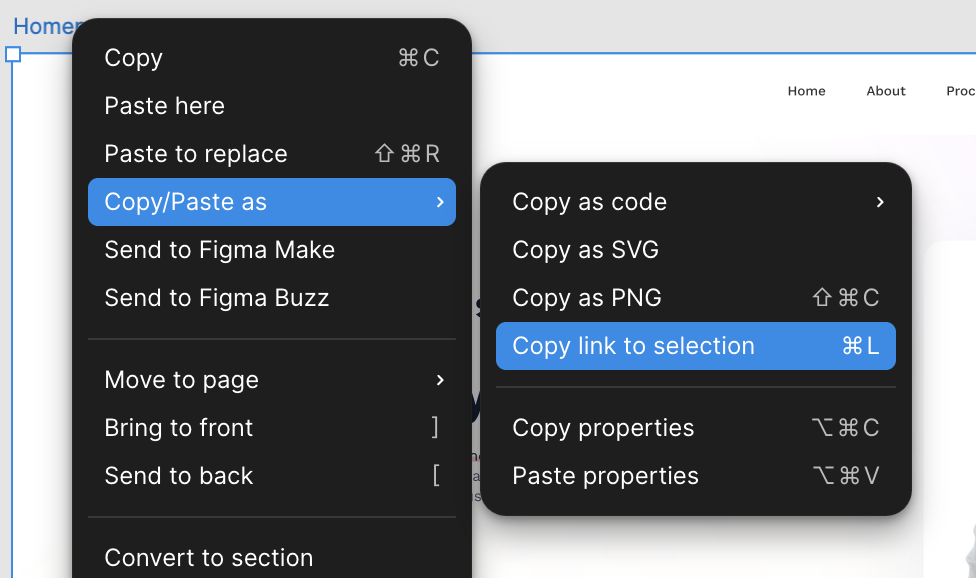
FIGMA_DESIGN_URL Implement this Figma DesignFIGMA_DESIGN_URL can be obtained from Copy/Paste as > Copy link to selection from the Figma Design URL.
We used the following Figma design as a sample:
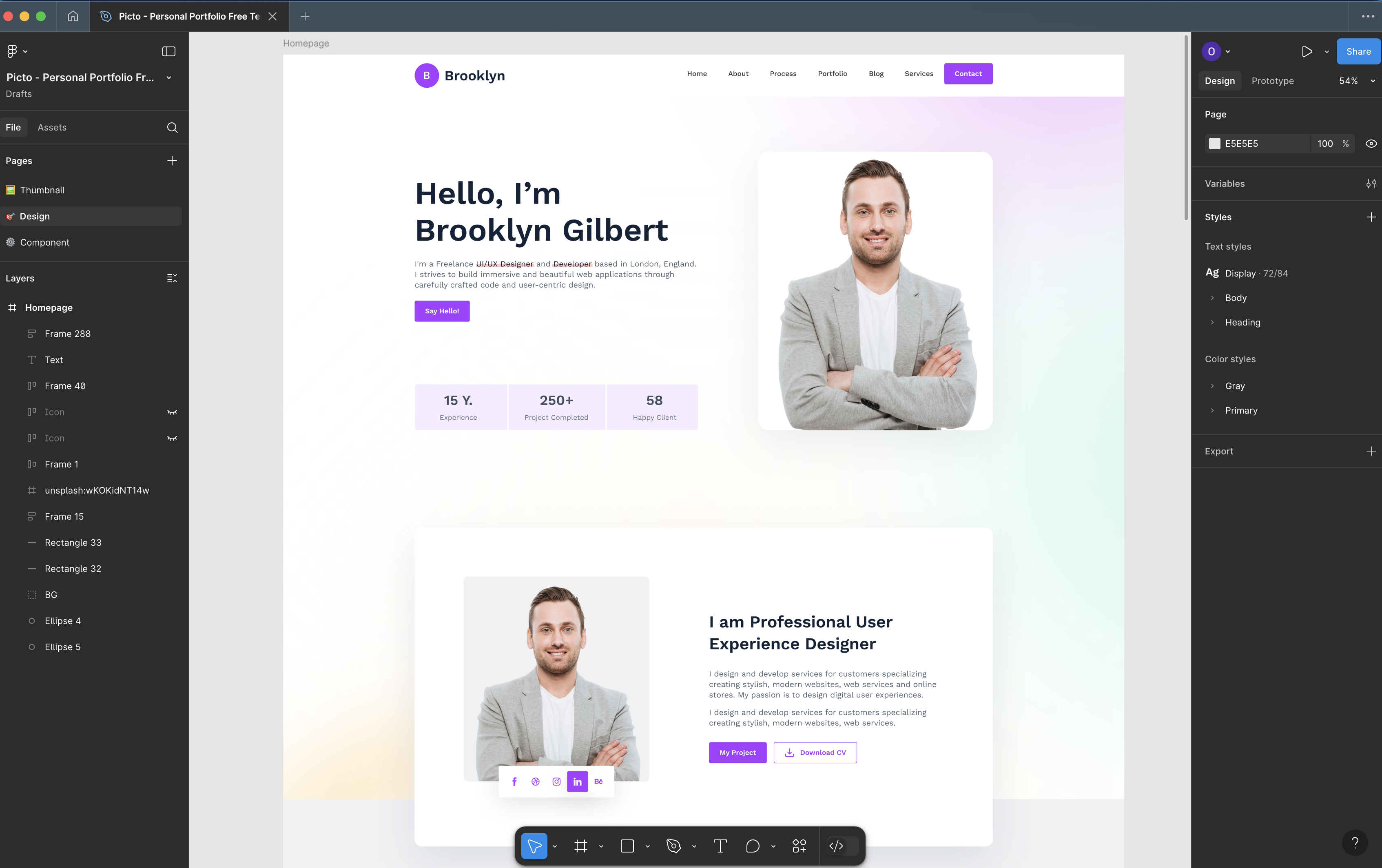
Figma Community - Portfolio Design
Experiment Results
1. Claude Code + Figma MCP
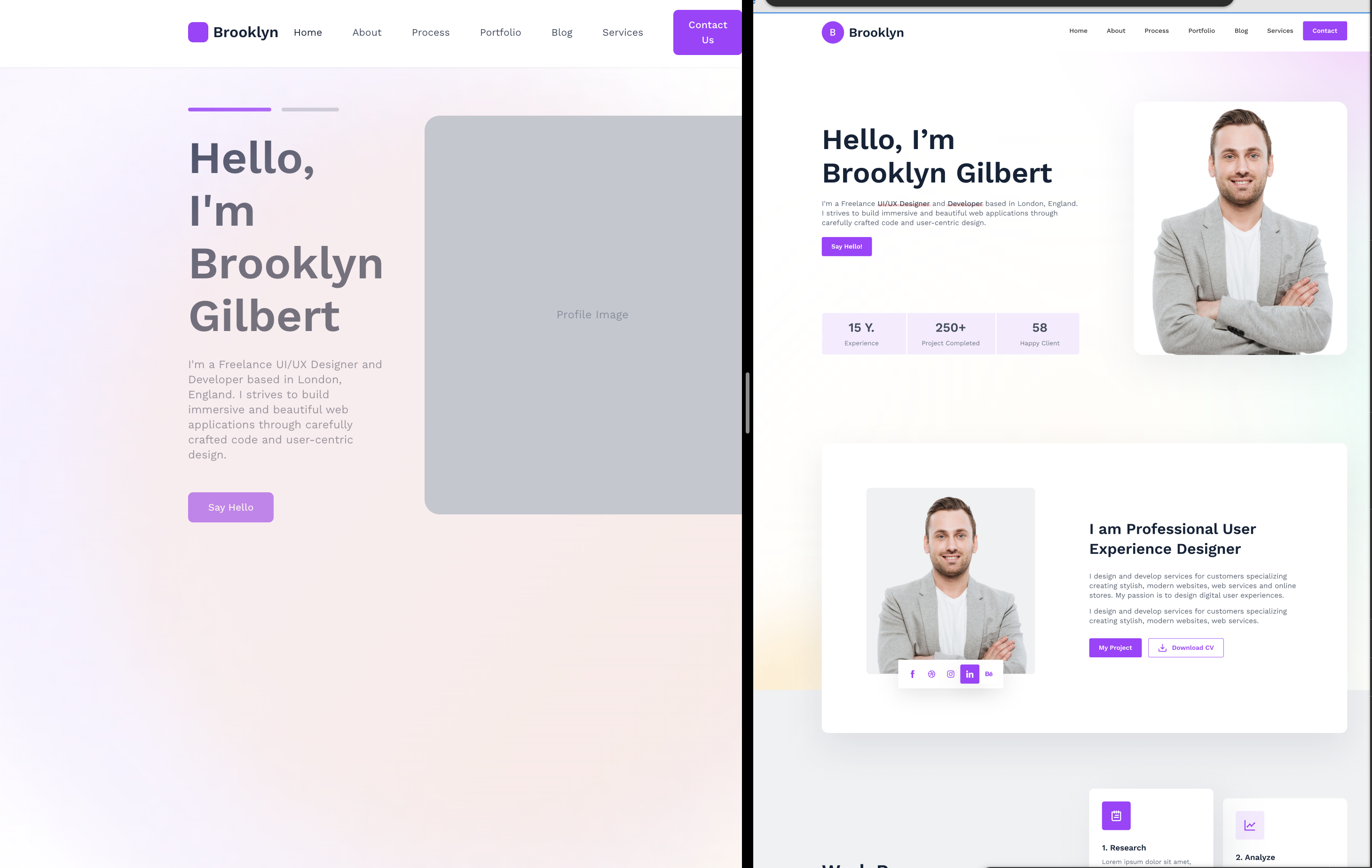
The Claude Code + Figma MCP combination generated an implementation split into 13 independent components using Next.js 14 App Router. Claude used Sonnet 4.5 (I couldn’t use Opus due to my rate limits).
Tech Stack:
- Next.js 14 (App Router)
- TailwindCSS 3.4
- TypeScript
In Claude Code’s implementation, components were split by function. It also reproduced subtle design nuances like gradient backgrounds and blur effects.
On the other hand, responsive support was partial since some places used fixed px values.
2. Codex CLI + Figma MCP
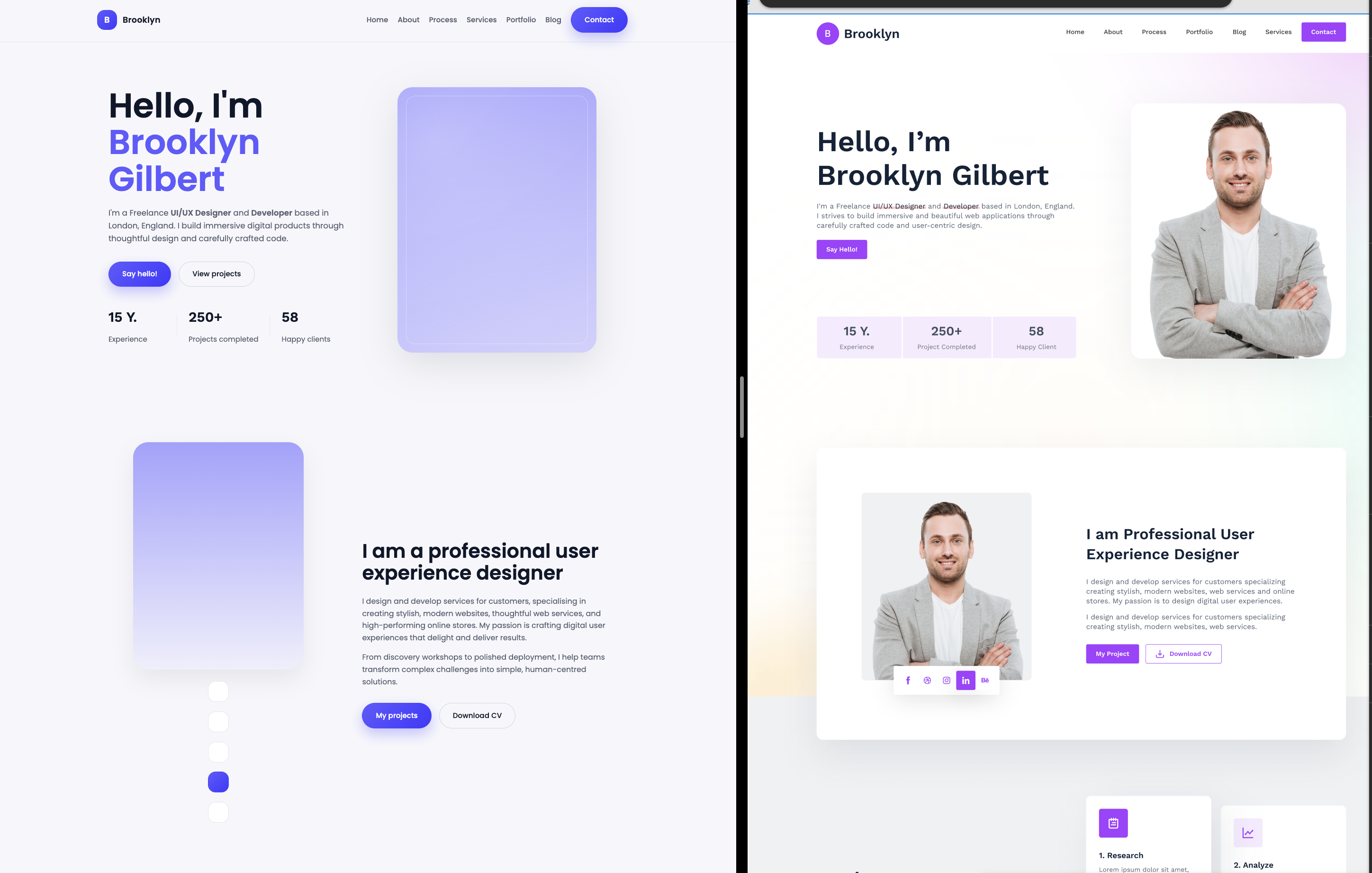
Codex CLI + Figma MCP generated both Next.js components and pure HTML.
Tech Stack:
- Next.js 14 (App Router + HTML mixed)
- Custom CSS (BEM-style naming)
- TypeScript
Codex CLI’s implementation thoroughly used semantic HTML with <dl>, <dt>, <dd> tags etc., with clear document structure. It also had accessibility-conscious implementation. The responsive support was good.
I was personally a bit concerned about the mix of HTML and React components.
3. Kombai
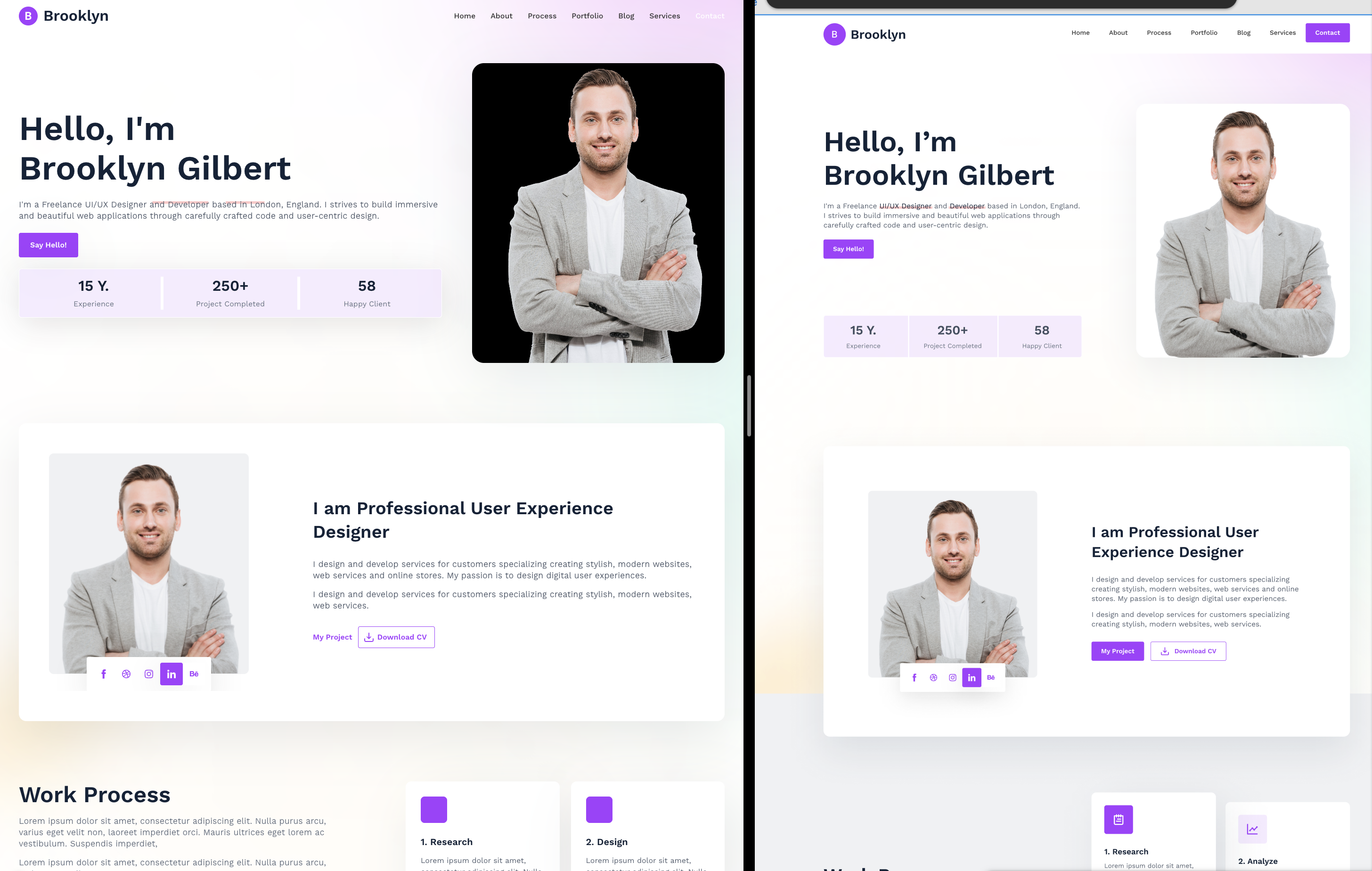
As a frontend-specialized AI, Kombai generated the most design-faithful implementation utilizing Material UI components. Including actual profile images, details were reproduced.
Tech Stack:
- React 18 + Vite
- Material UI (MUI) v5
- TypeScript
- Emotion (CSS-in-JS)
Kombai’s implementation used MUI’s breakpoint system for responsive support, which was good. Among the 3 tools, it had the highest design reproduction accuracy.
The strong dependency on Material UI was a slight concern.
3-Tool Comparison
| Item | Claude Code + MCP | Codex CLI + MCP | Kombai |
|---|---|---|---|
| Tech Stack | Next.js 14, TailwindCSS | Next.js 14, CSS | React 18, MUI |
| File Structure | 13 components | 12 components + HTML | 9 sections + shared components |
| Design Reproduction | ~65-70% | ~70-75% | ~75-80% |
| Responsive Support | Partial (fixed px) | Good | Good |
| Image Handling | Placeholder | Placeholder | Actual images |
| Accessibility | Basic | Excellent (aria attributes) | Good (MUI standard) |
Summary
This time, I compared 3 tools in detail from a Figma to Code perspective.
While pixel-perfect implementation is difficult at this point, all tools can achieve 70%+ fidelity reproduction. Framework and library consistency still requires engineer evaluation and adjustment.
From this experiment, AI tool design-to-code implementation seemed quite accurate for simple implementations, sufficient as a starting point.
Aside
When I mentioned I was presenting, Kombai issued a coupon code. If you contact me via X DM, I’ll share the coupon code (apparently valid for 80 accounts, so it won’t work if exceeded. Sorry).
Follow Me on X
I also share information on X, so I’d appreciate it if you followed me!
References